Menu Management
Using the Manage Menu module, you can update item information and mark sold-out items as unavailable at any time. All changes are immediately synchronized with the customer interface, preventing orders of unavailable items or incorrect pricing.
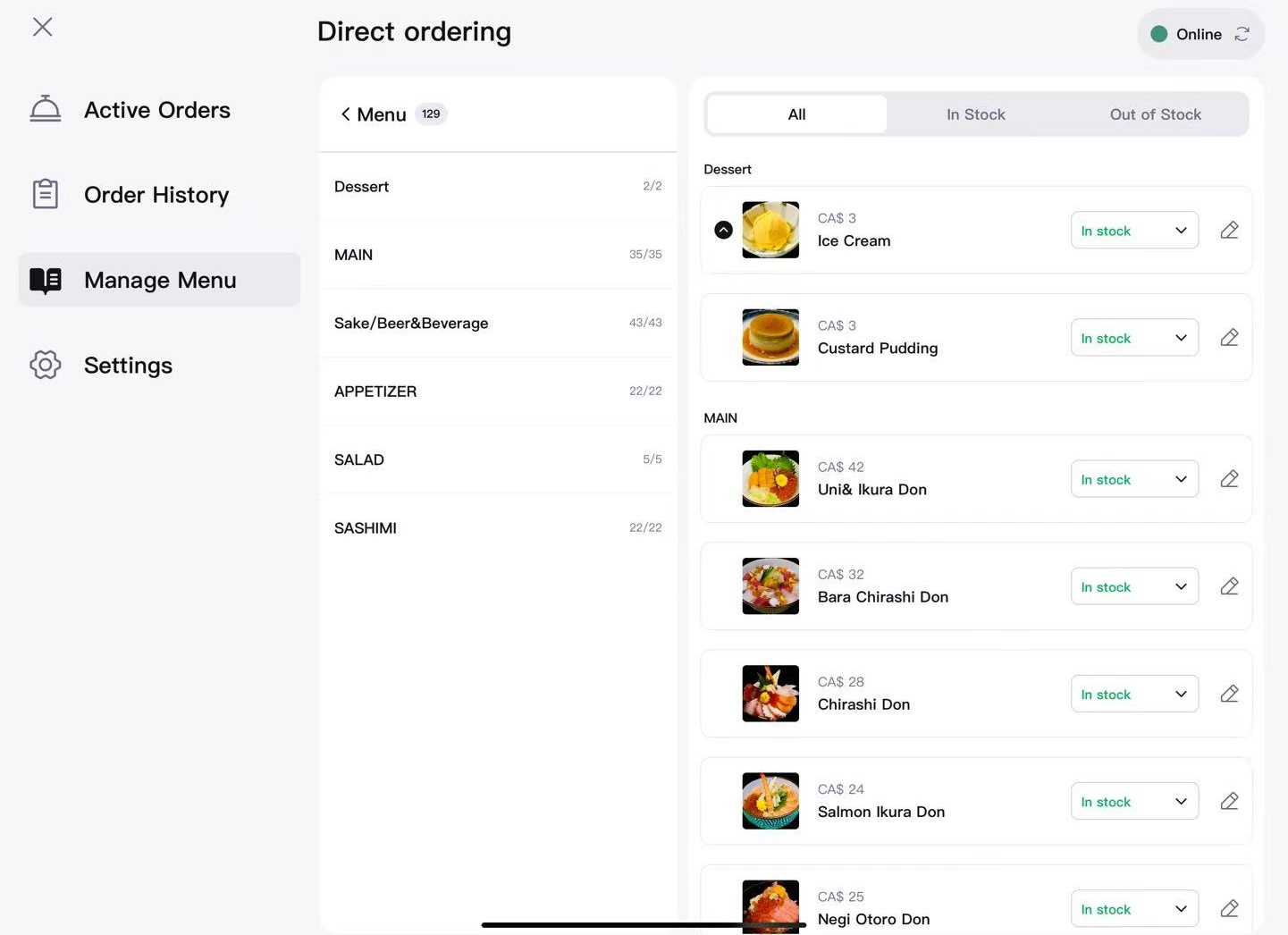
1. Mark Items as Out of Stock / Restock Items
- Go to Manage Menu → All Menu.
- Find the desired item and click on the status dropdown on the right.
- Select:
- Out of stock: Immediately mark the item as unavailable.
- In stock: Restock the item for sale.
- Changes take effect immediately without further saving. Items scheduled with specific out-of-stock times will automatically revert to in-stock status when the period ends.
2. Modify Prices and Descriptions
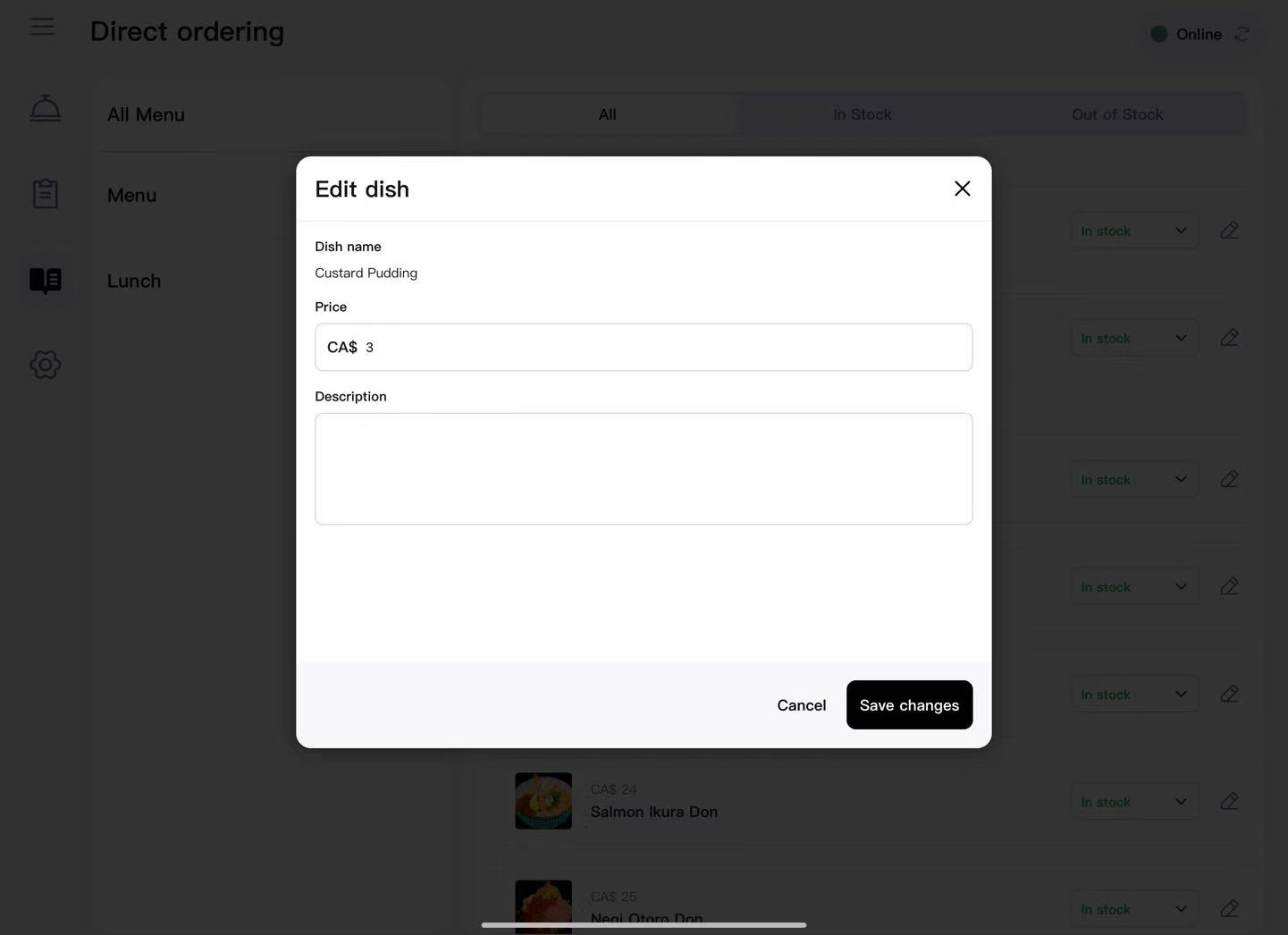
- In the menu list, click the pencil icon (Edit).
- In the popup window, you can edit:
- Price: Enter the new price (up to two decimal places).
- Description: Brief description, allergens information, etc.
- Click Save, and the system instantly updates the changes to customers.
3. Quickly View All Out-of-Stock Items
- Click the Out of Stock tab at the top to view all unavailable items at once.
Get Help
If you encounter any issues updating your menu, please email hello@zomi.menu.