Order Management Overview
When a new order arrives, ZOMI FOR RESTAURANT alerts you with a notification sound and displays it at the top of your order list. Please click Confirm within 15 minutes; otherwise, the system will automatically cancel the order.
| Action | Quick Access |
|---|---|
| Accept Order | Click Confirm at the bottom-right of the order card |
| Reject Order | Click Adjust, then select Cancel Order |
| Adjust Prep Time | After accepting, click +5min or -5min to adjust the preparation time by increments of 5 minutes |
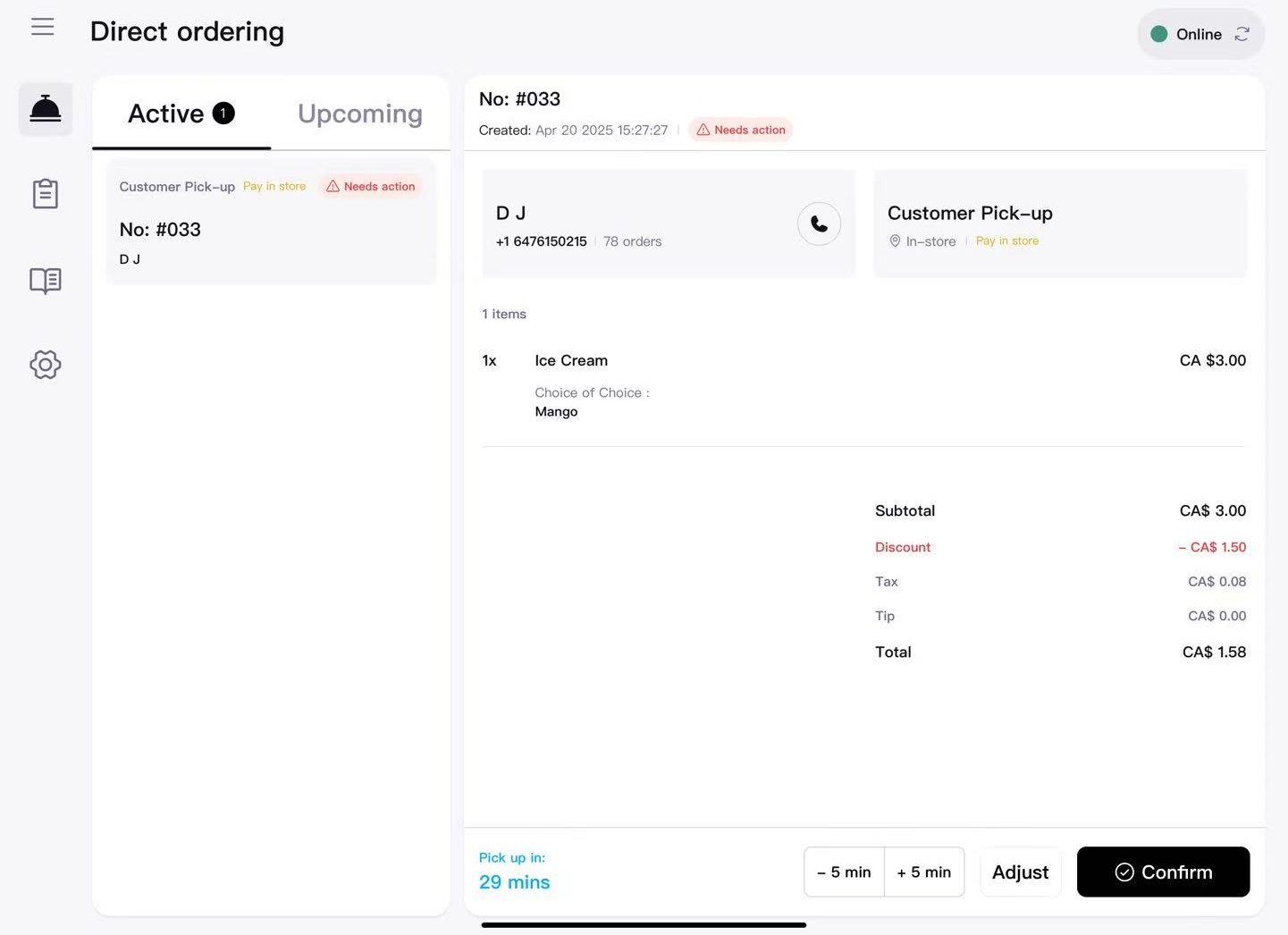
Order details page will display customer name and contact, and delivery person name and contact (if it’s a delivery order).
1. Accepting an Order
- Select the order marked Needs Action.
- Verify the items, quantities, special notes, and expected pickup time.
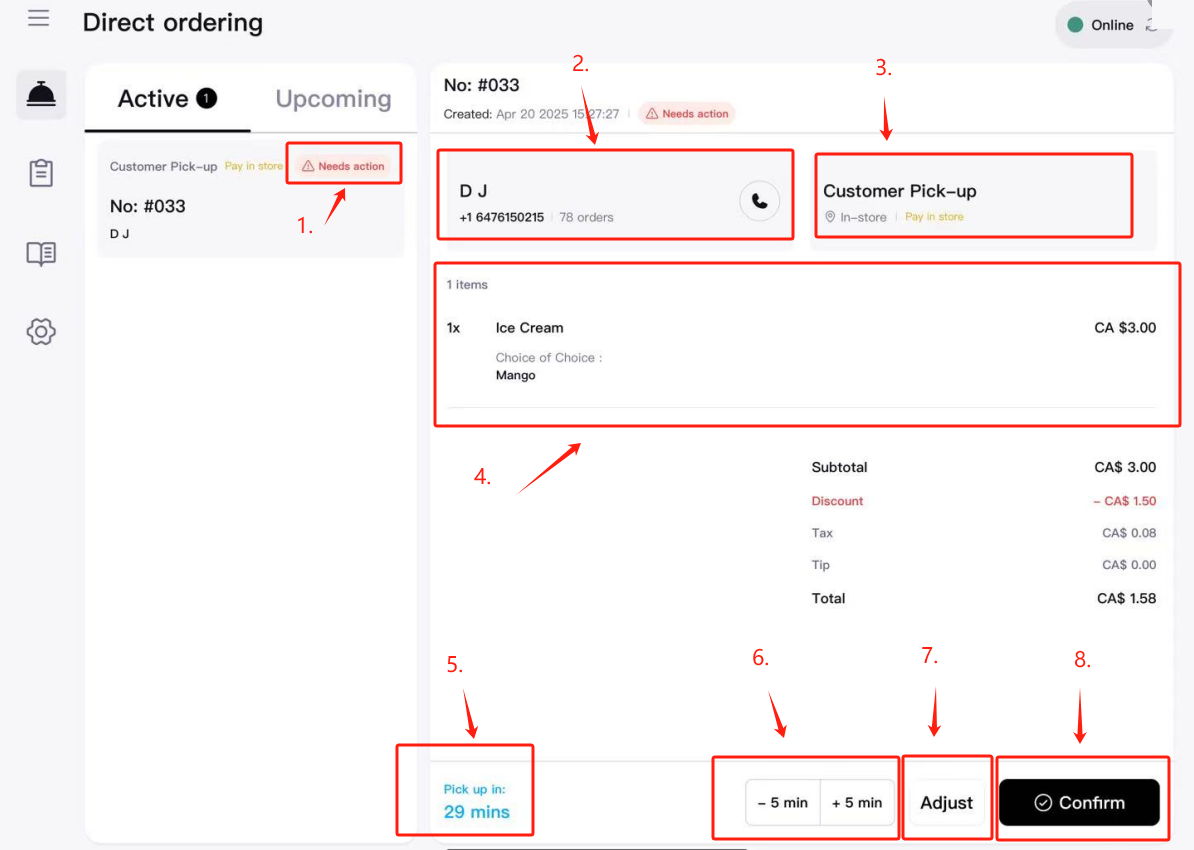
- Click Confirm.
- The system displays the estimated pickup/delivery time to the customer.
1: Indicates current order status, if action is needed, in preparation, or ready.
2: Shows customer's name and contact information.
3: Displays pickup type, delivery person’s name, and contact (for delivery orders).
4: Shows full order details, customer notes, and selected items.
5: Shows expected customer or delivery person's arrival time.
6: Adjust expected preparation time before confirming the order.
7: Enter the order details to edit item availability or other details.
8: Confirm order acceptance.
Didn't receive notifications or sound alerts?
Please check device volume, notification permissions, and internet connectivity. Verify the correct login account. If everything is correct, close the app completely and reopen it.
2. Adjusting Prep Time
If the kitchen is busy, you can extend prep time by +5 / +10 / +15 minutes.
- Before accepting, adjust the prep time by clicking +5 min or -5 min on the order card.
- After accepting, enter the Adjust menu and select Adjust Prep Time.
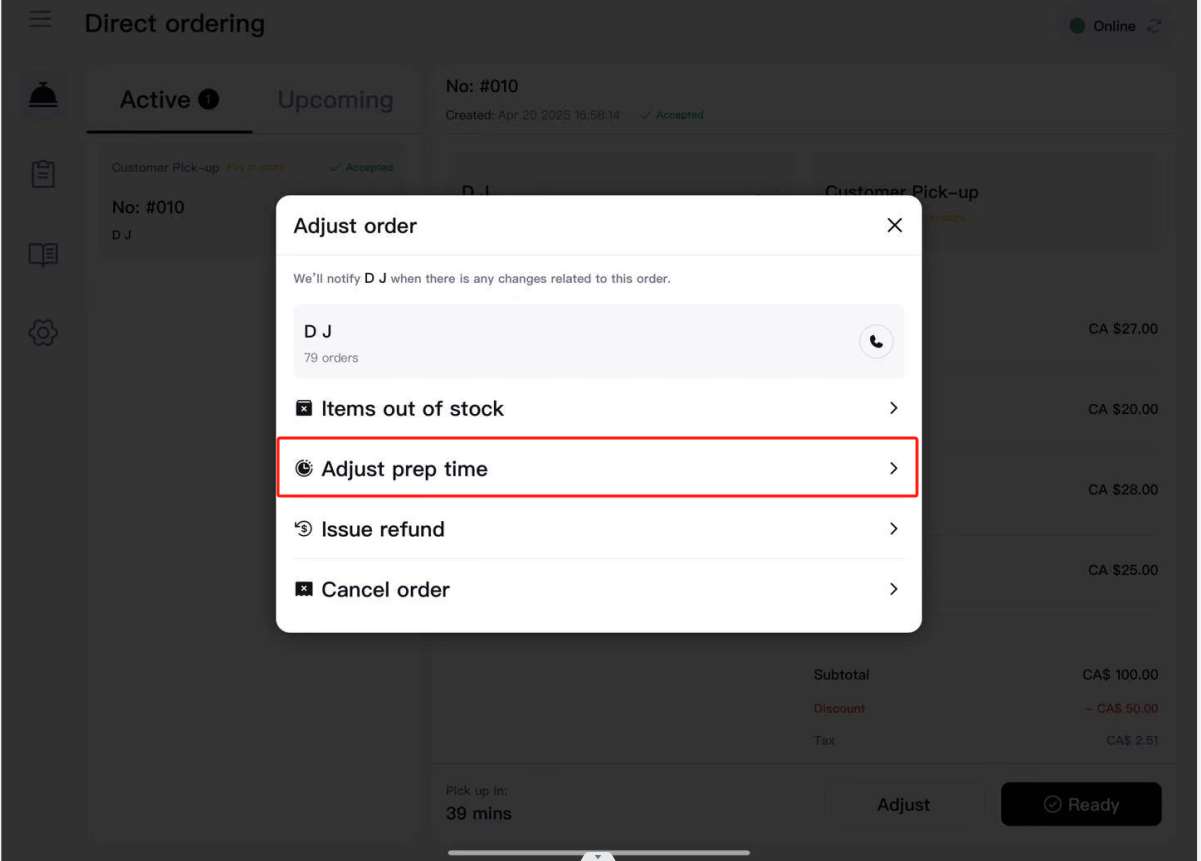
- Select the new estimated prep time.
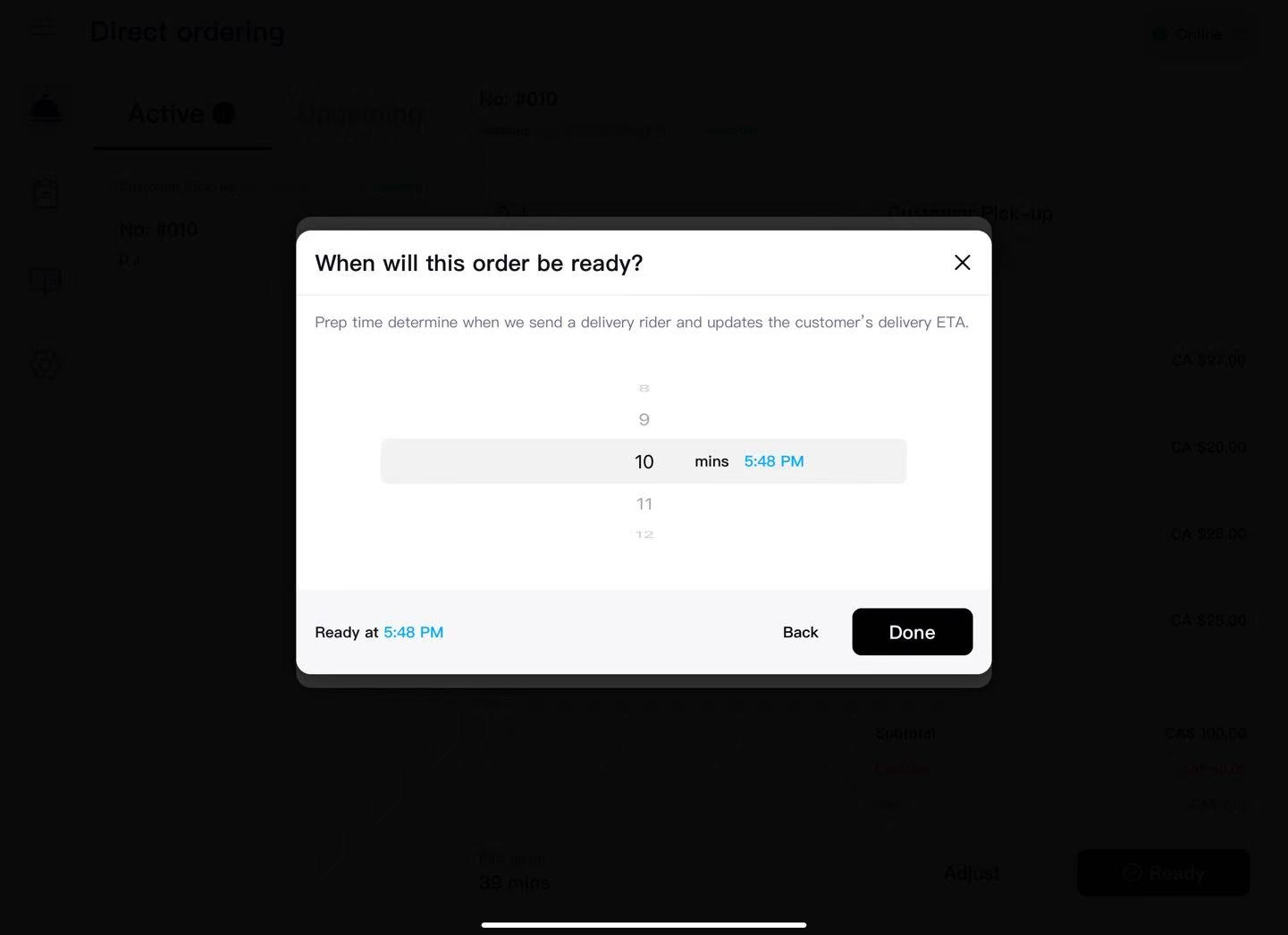
- The customer receives an updated time notification.
Adjust Prep Time is available only after order acceptance. Before acceptance, use +5 min or -5 min to adjust prep time.
3. Partial Stock-outs & Refunds
3.1 Mark Items as Out of Stock
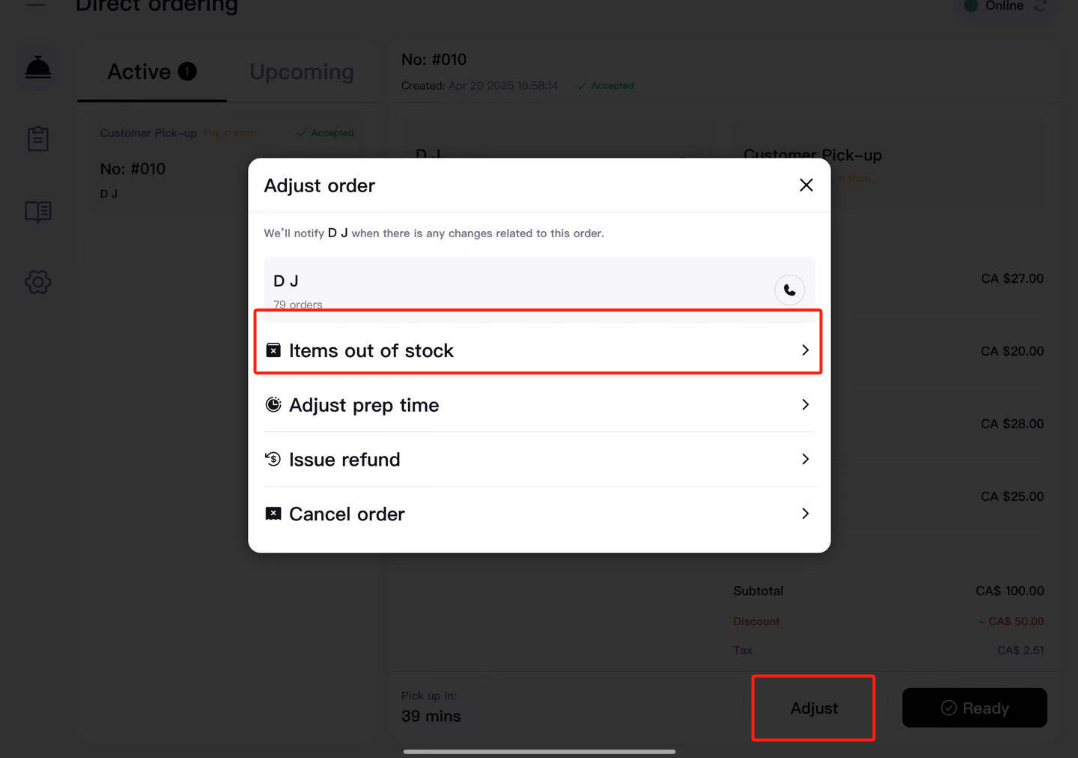
- On the order details page, click Adjust, then select Item out of stock.
-
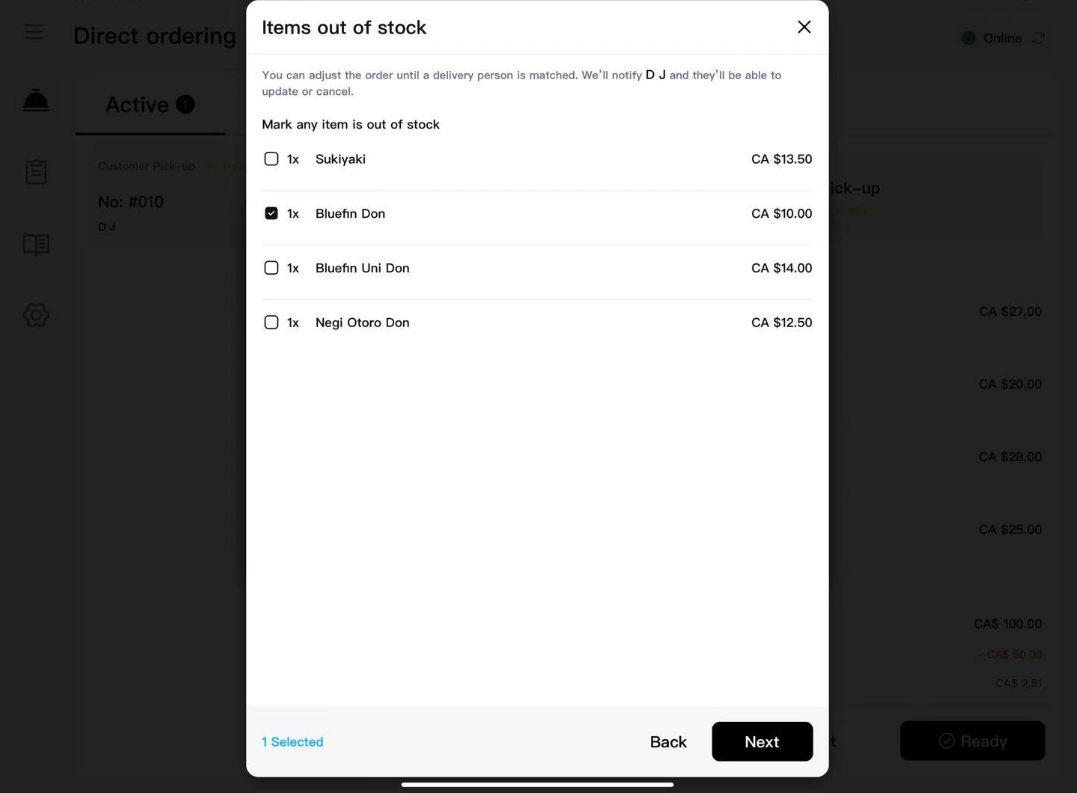
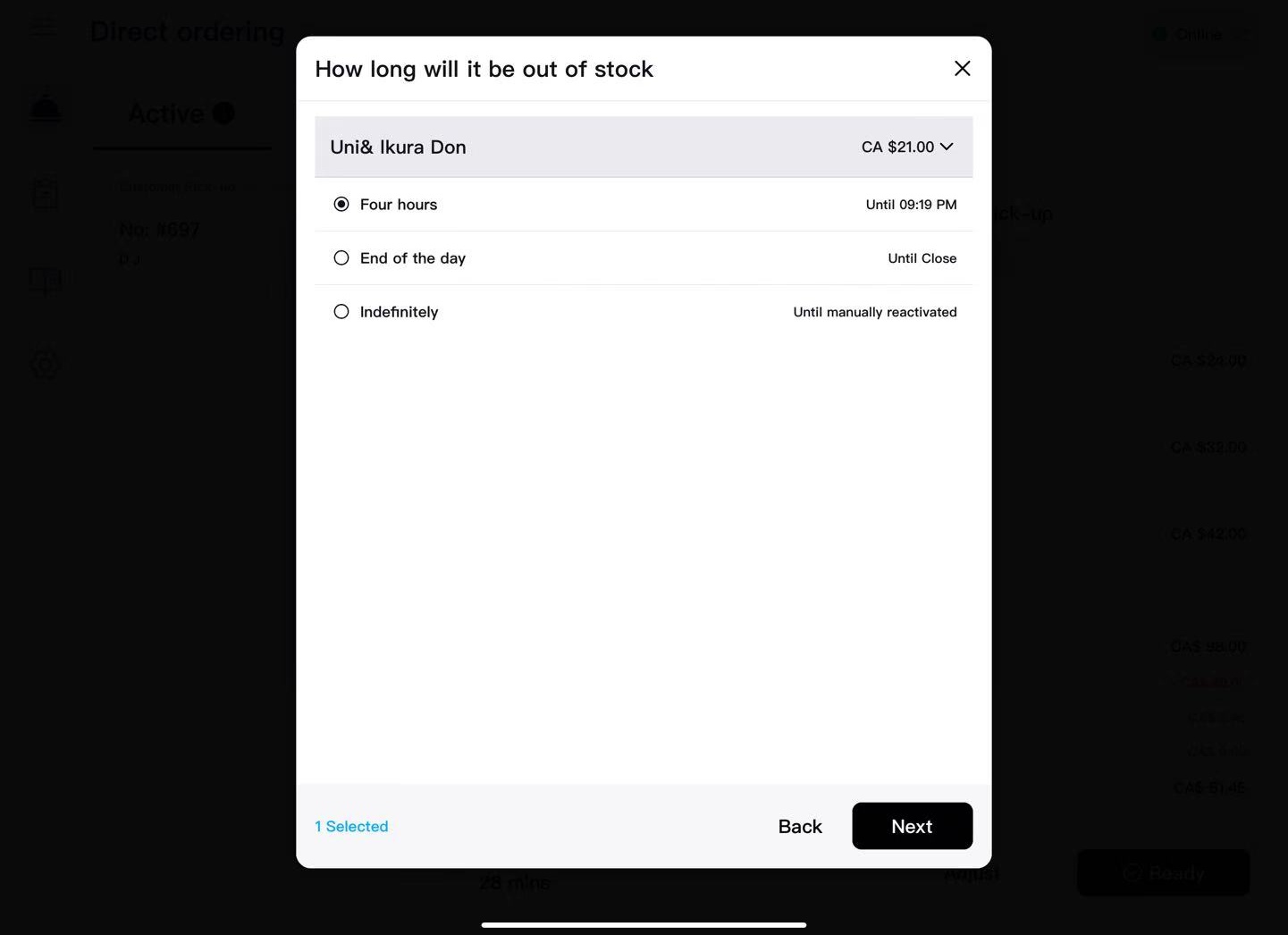
Select out-of-stock items, click NEXT after verification, and set the duration (within 4 hours, until today's closing time, permanently out of stock).
-
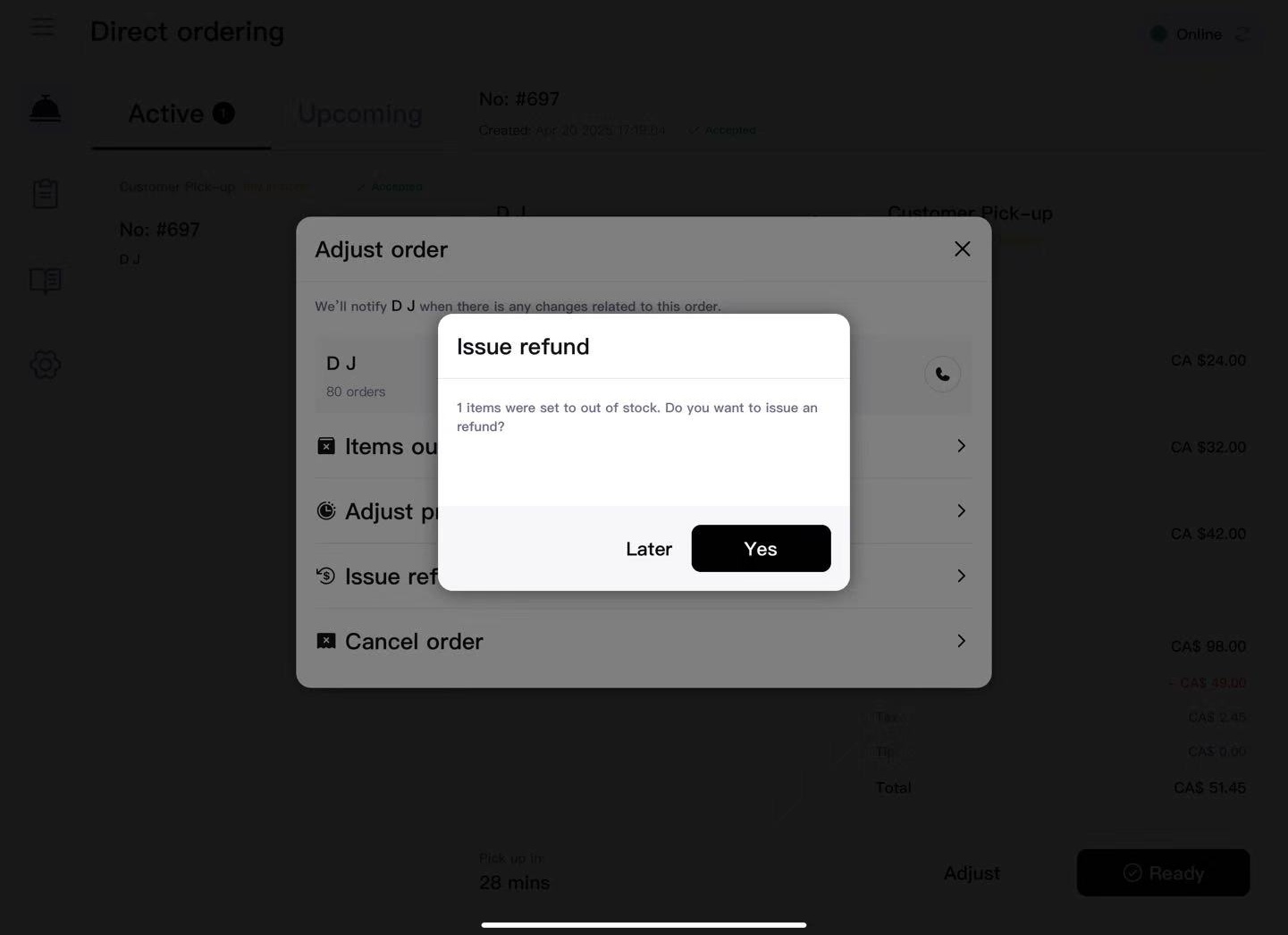
Optionally initiate an immediate refund or process refunds later in the order history.
-
In the refund screen, the system automatically calculates item prices. Merchants can also manually enter refund amounts. Verify amounts carefully before clicking Confirm Changes.
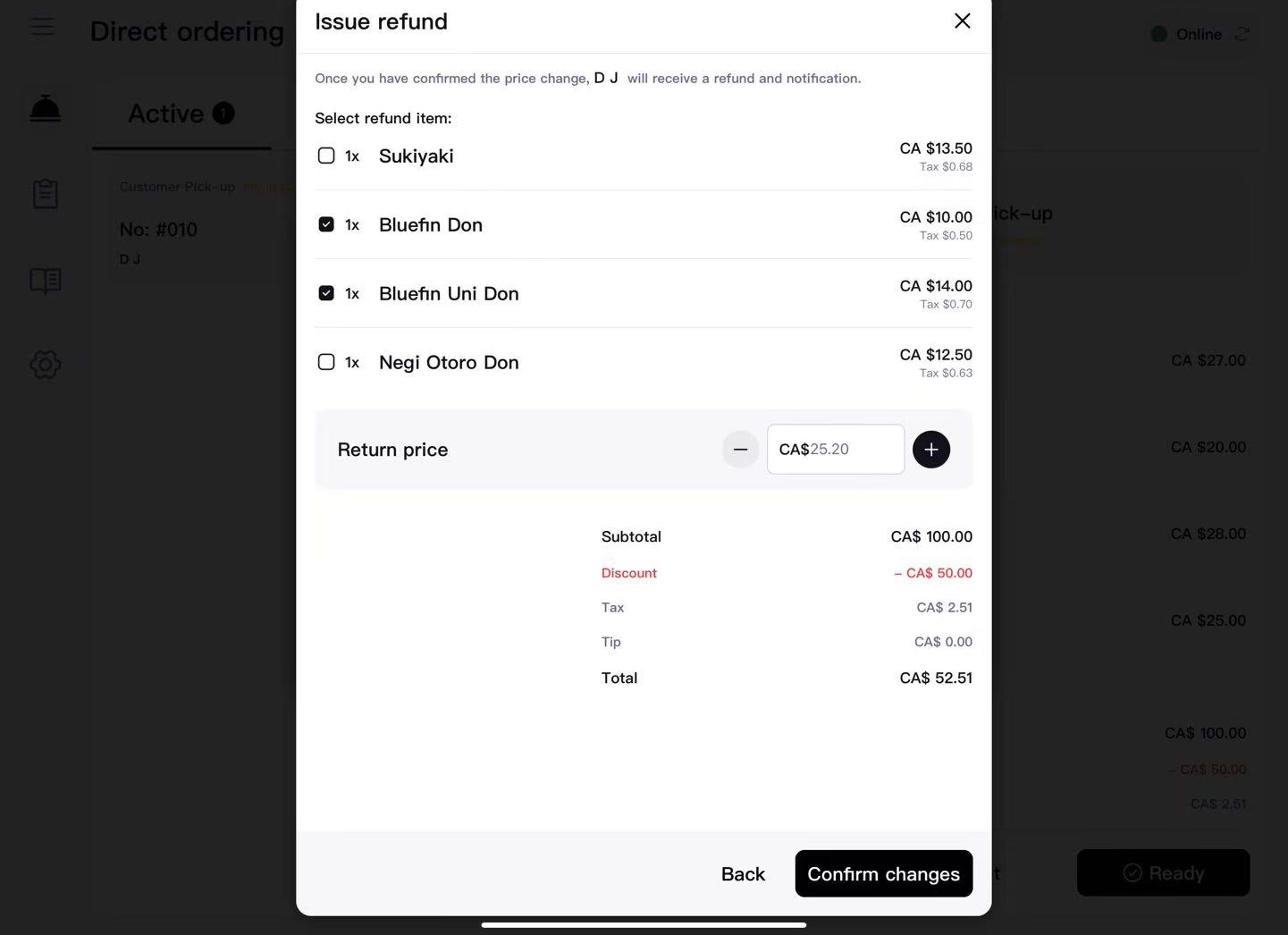
Caution
Refunds initiated by merchants cannot be reversed. Verify refund amounts and orders carefully. ZOMI will not be responsible for merchant-initiated refund errors.
3.2 Full Order Refund
If the entire order cannot be completed:
-
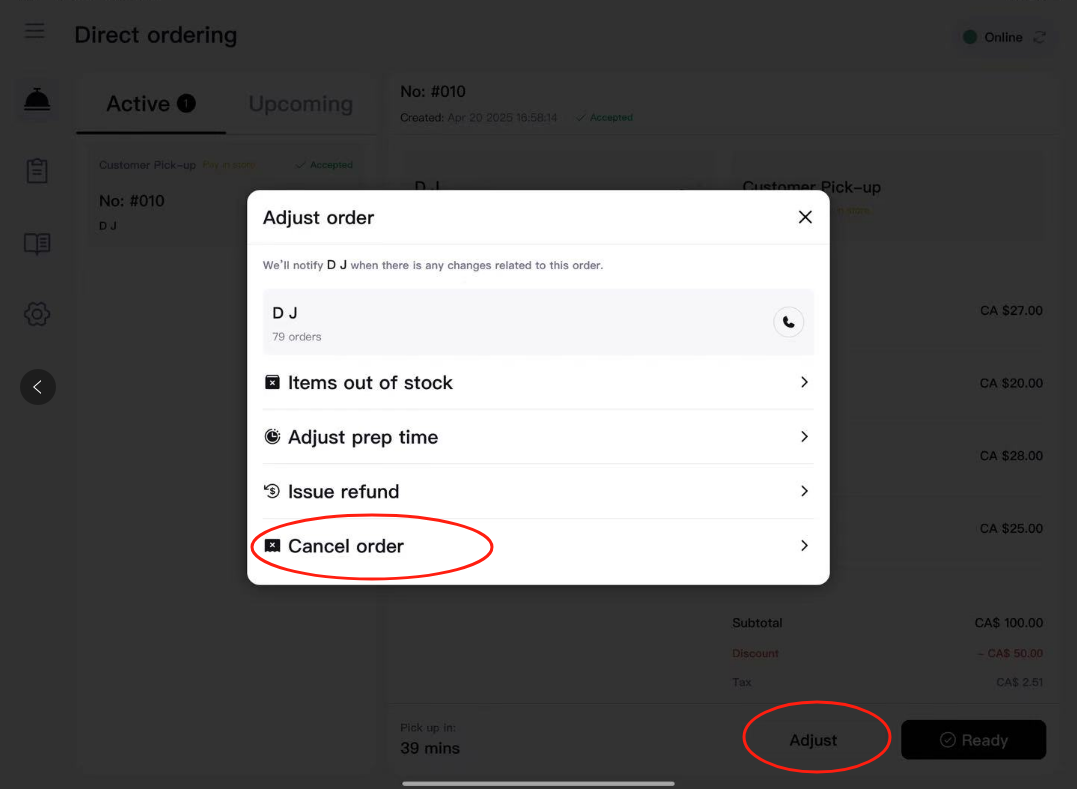
Click Adjust → Cancel order.
-
The system refunds the full amount and records it.
Caution
Refunds initiated by merchants cannot be reversed. Verify refund amounts and orders carefully.
3.3 Refunds for Non-stock-out Situations
To refund partial items without marking them out-of-stock:
-
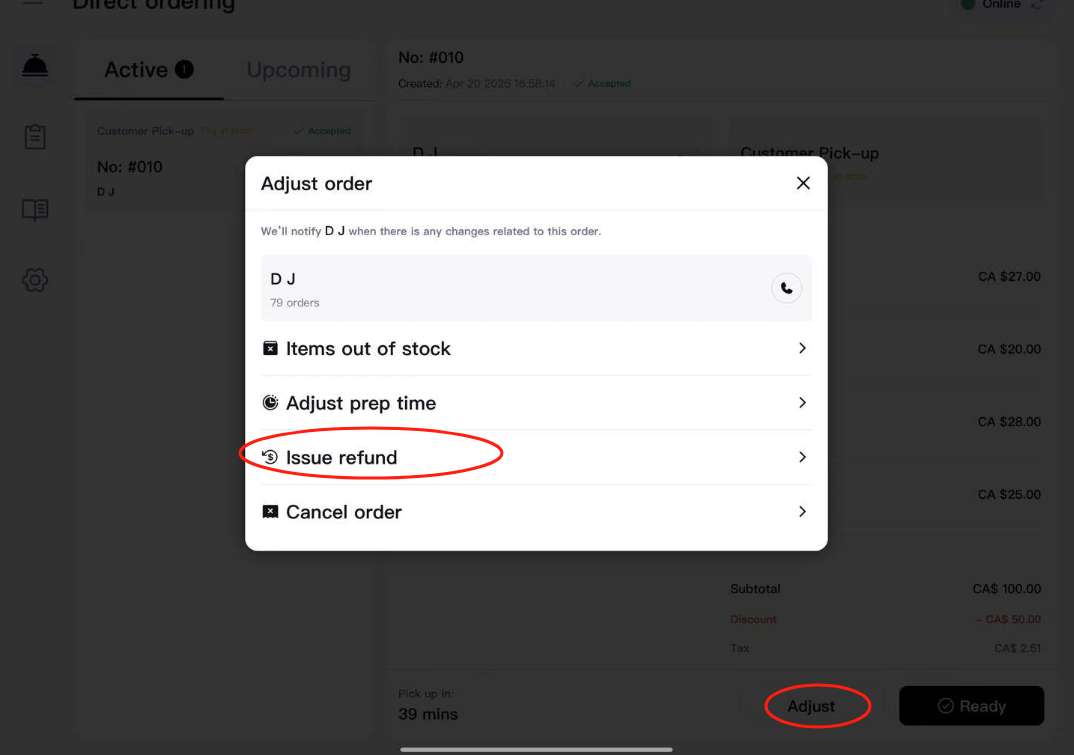
Click Adjust → Issue Refund.
-
Select items to refund or manually enter refund amounts. Verify carefully before clicking Confirm Changes.
Caution
Refunds initiated by merchants cannot be reversed. Verify refund amounts and orders carefully.
4. Order Statuses
| Status | Description | Action |
|---|---|---|
| Need Action | Requires merchant action to accept or adjust prep time | Adjust prep time, accept, or reject orders |
| Accepted | Order has been accepted | Click Ready to notify customers, adjust prep time, mark items as out of stock, or issue refunds |
| Ready | Order is prepared | Click Complete to finish and archive the order |
| Completed | Customer pickup/delivery complete | Automatically archived to History |
5. Pickup Orders vs Delivery Orders
| Comparison | Pickup | Delivery |
|---|---|---|
| After acceptance | Customer name + Pickup number | Delivery address + Rider details |
| "Ready" action | Customer presents pickup number, staff clicks Complete | Hand over order to rider; rider provides pickup number |
| Contact | Directly contact customer | Contact only via anonymous system calls |
Differences between pickup and delivery orders in the order list:
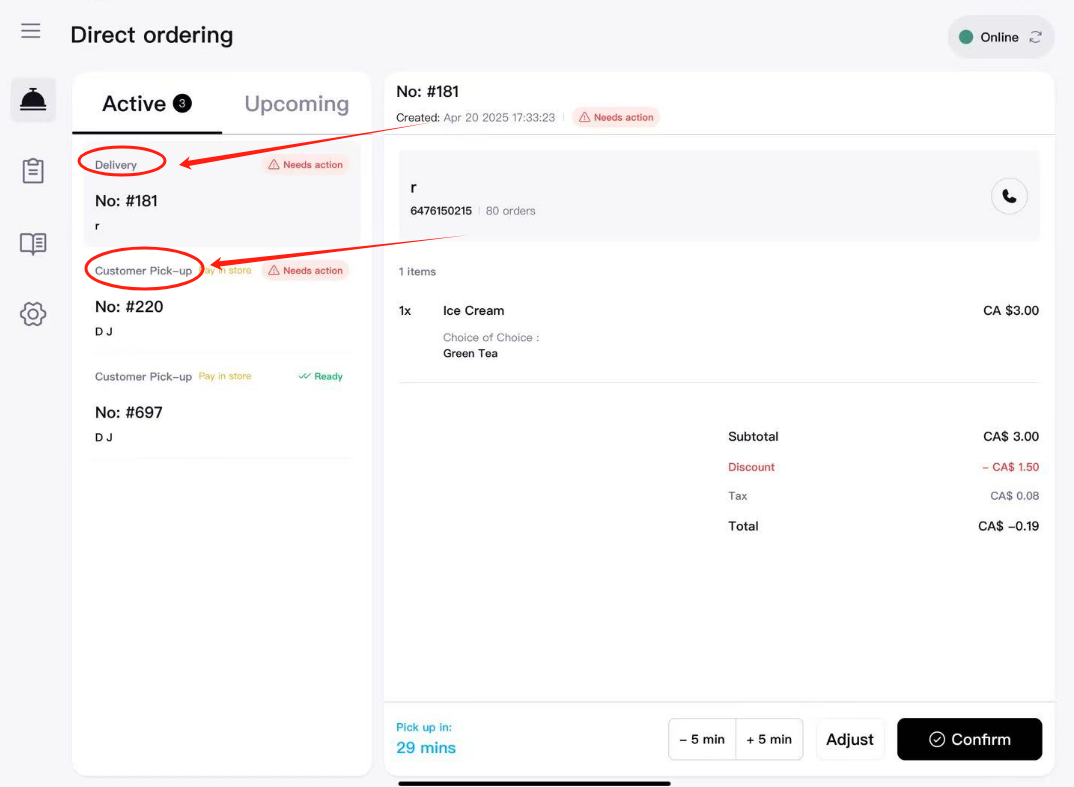
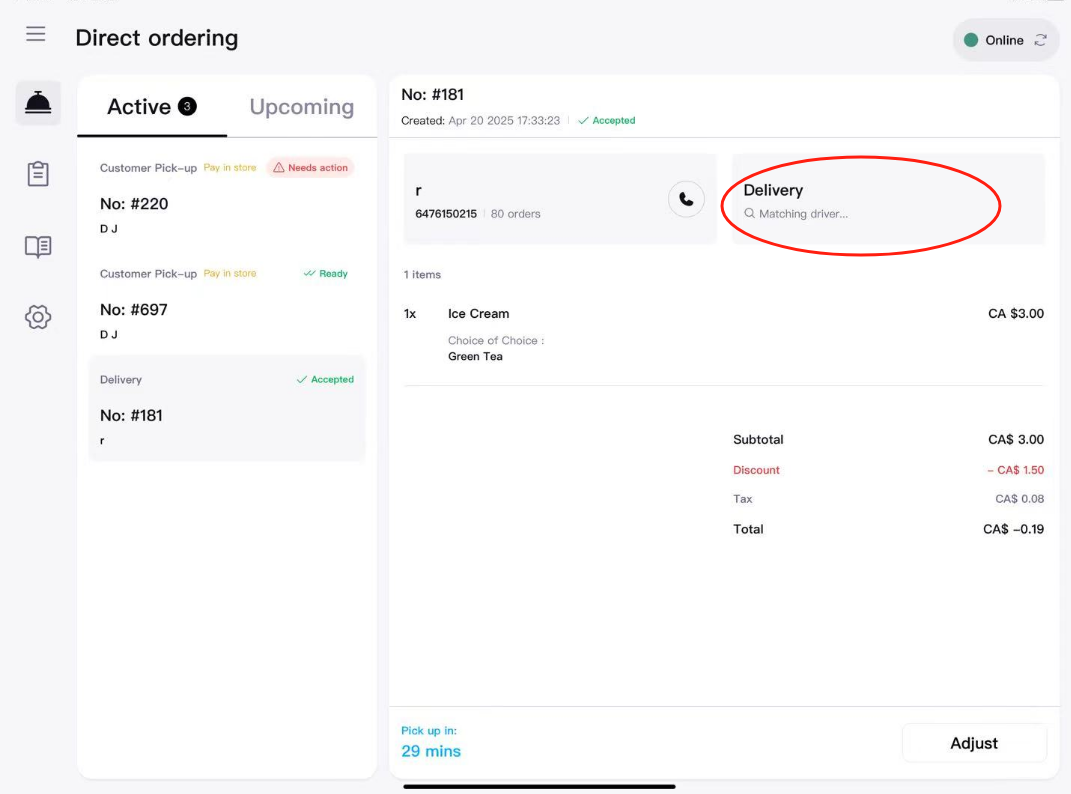
For delivery orders, delivery status and rider information are shown:
Need more help?
Please email hello@zomi.menu.