Settings
The Settings module allows you to manage basic store configurations, including store hours, account security, and language preferences. Changes take effect immediately after submission without restarting the app.
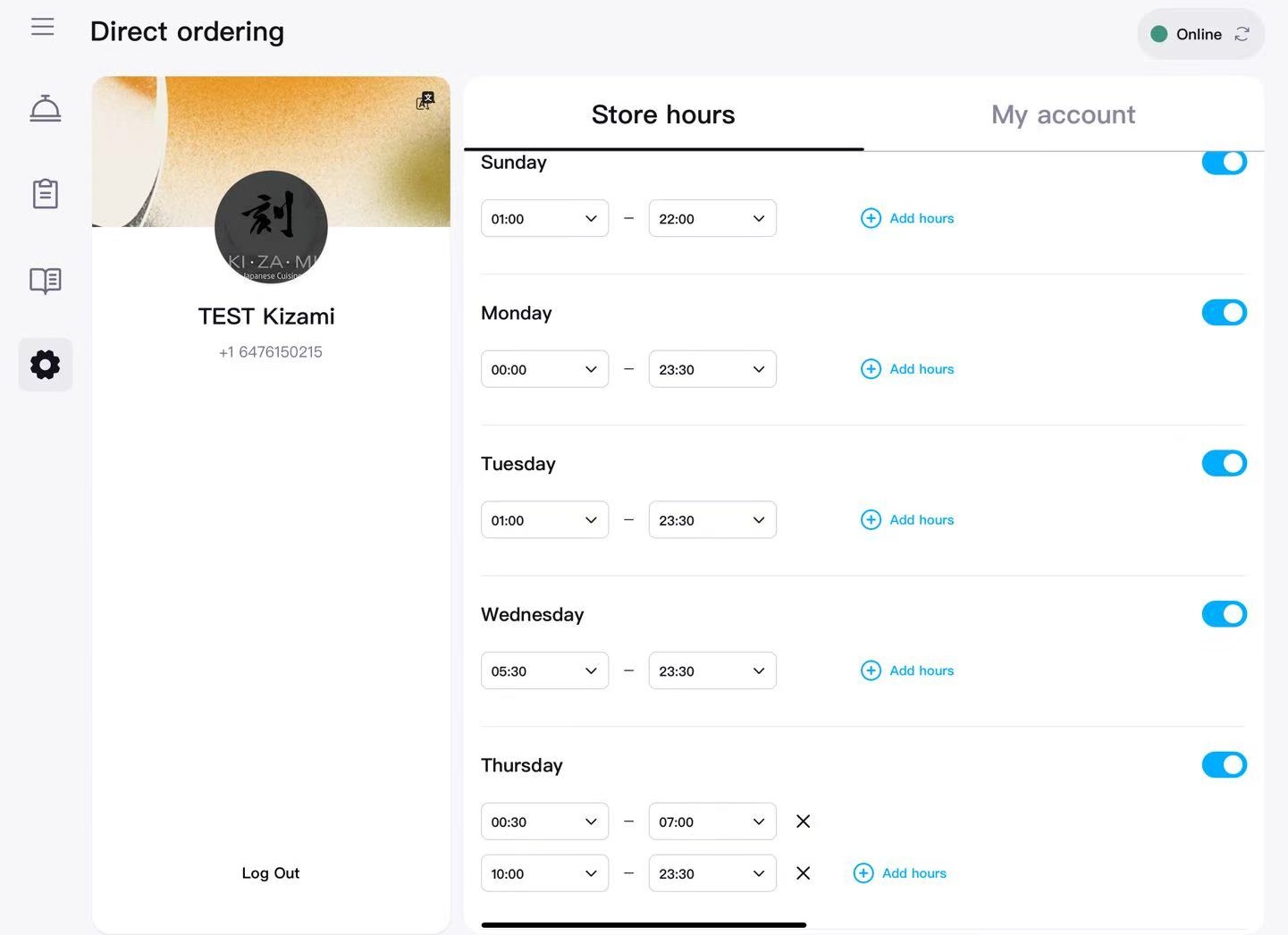
1. Adjust Store Hours
- Navigate to Settings → Store hours in the sidebar.
- Locate the weekday you want to adjust.
- Click the dropdown boxes to select the start time and end time.
- If your store has separate lunch/dinner shifts, click Add hours to include an additional period.
- If your store is closed that day, switch the toggle on the right to grey.
- Changes are saved automatically; no additional action is needed.
Quick Tips
- Click the × to quickly remove a shift
- For overnight shifts (e.g., 10 PM to 2 AM), the system automatically recognizes that the shift ends the next morning.
2. Change Account Password
- At the top of Settings, switch to the My account tab.
- Click Change password.
- Follow the prompts to enter:
- Current password
- New password
- Confirm new password
- Click Save. After successfully changing your password, you will need to log in again.
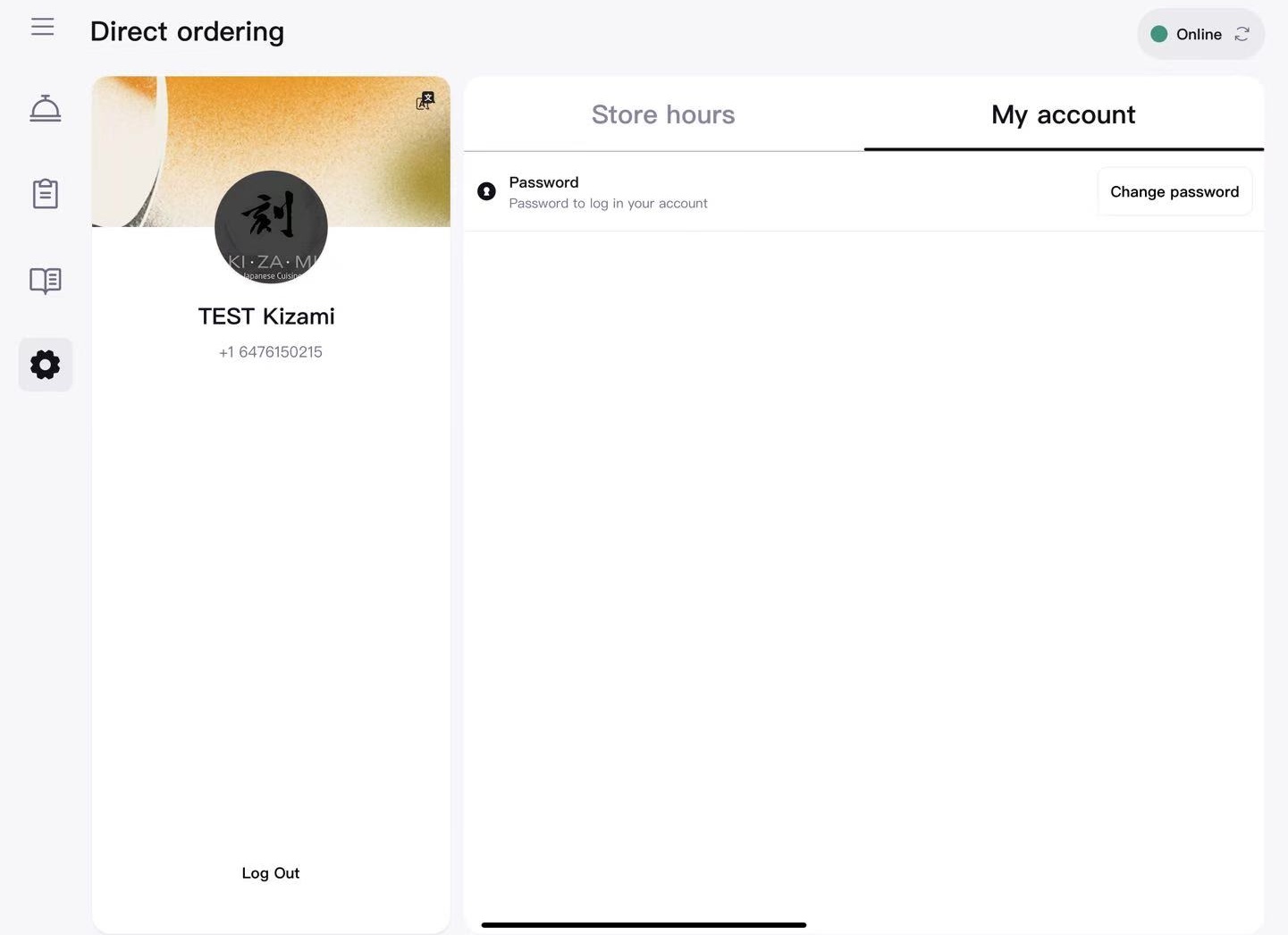
Forgot your password?
Please contact ZOMI customer support, and we will reset your password.
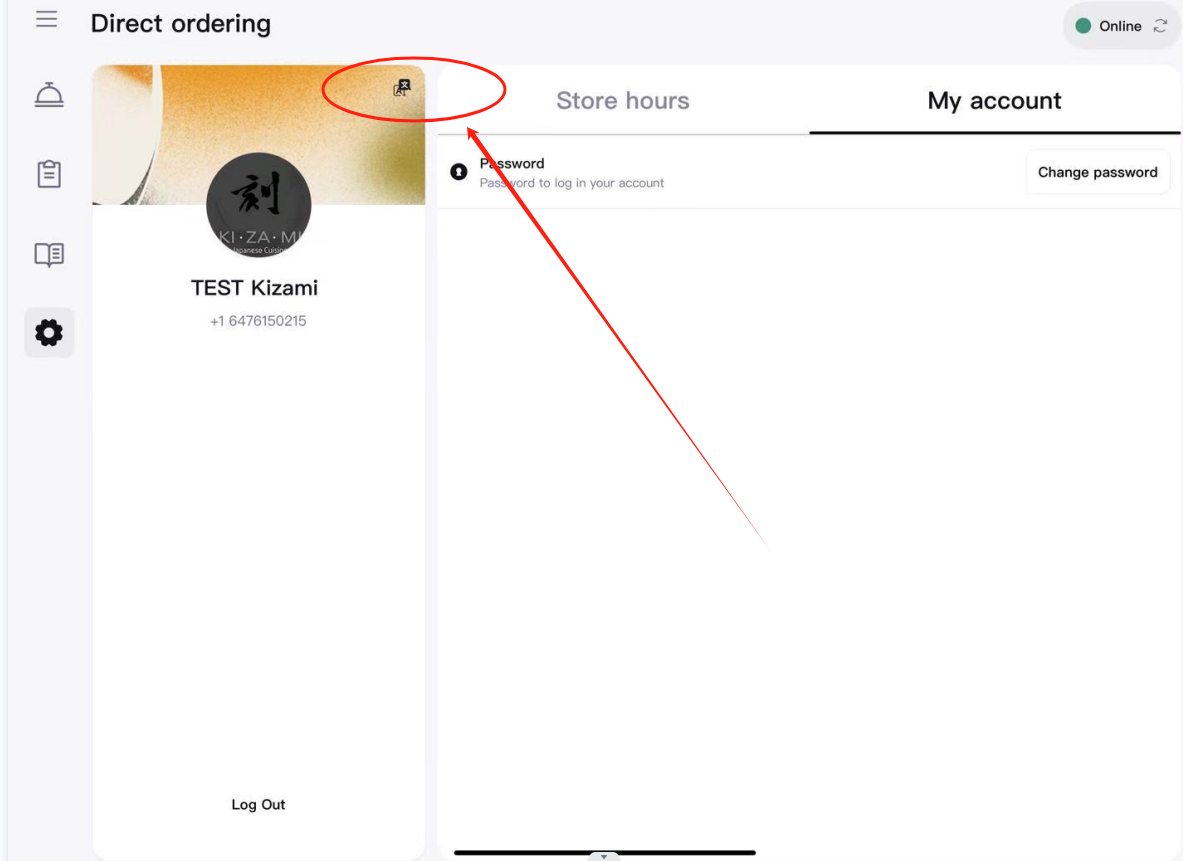
3. Switch Menu Display Language
You can switch the menu between 中文 / English, making it easy for staff to use their preferred language.
- Navigate to Settings → Language.
- Select 中文 or English.
- Return to any menu or order interface; item names and buttons will be displayed in your chosen language.
- Customer-facing language settings remain unaffected; changes apply to the merchant side only.
Printer Guide
Supported Printer Models
Only selected models from Star Micronics and Epson are supported. Supported printers must use 80mm receipt paper.
How to Connect the Printer
- Open the ZOMI for Restaurant app.
- Go to Settings.
- Click Printer.
- Search for available printers and connect.
Need more help?
Please email hello@zomi.menu.